 Pokémon Masters Lab
BEGINNER TOOL GUIDE
Quick Team Builder guide: build around one or two favorites
Our new tool suggests the remaining team members and sync move order after you choose one or two sync pairs. If detailed settings feel overwhelming, start with an event mode and one favorite. Register your owned sync pairs to find teams you can build.
Find your first team
For your first search, just choose one sync pair you want to use. You can adjust your owned pairs later.
- Under “Choose your mode”, choose Tower, Damage Challenge / Super Sparring, or High Score Events, then set the types and rules.
- Enter a Trainer or Pokémon name under “Search by name” and choose one or two sync pairs.
- Use “Update owned pairs” to uncheck pairs you do not own, and adjust training settings if needed.
- Select “Build a team with these pairs”. You will see up to three teams. Check the sync move order and open “View the action order and reference calculation” for more detail.
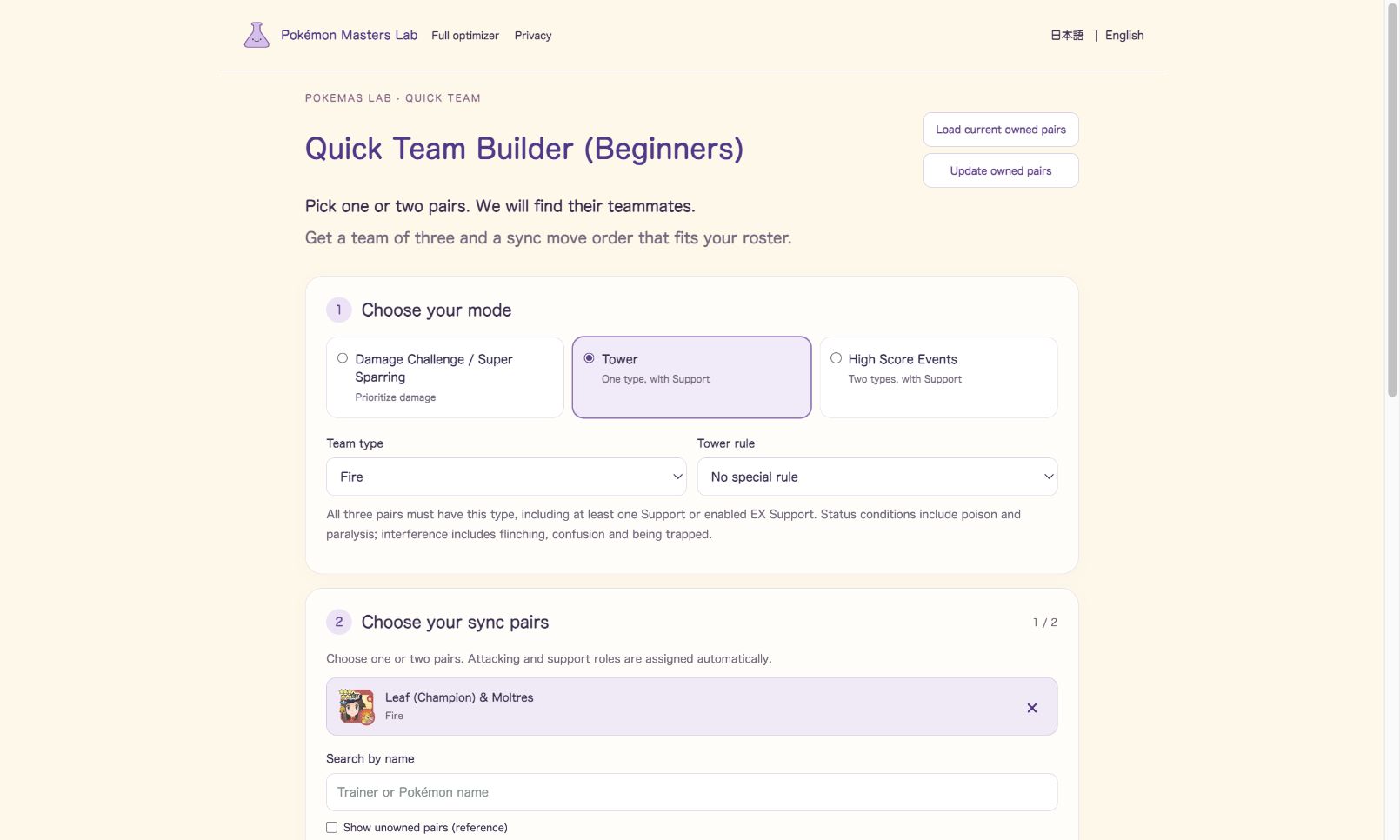
Match the settings to your event
| Mode | Settings and team requirements |
|---|---|
| Damage Challenge / Super Sparring | Choose the opponent’s weakness and one opponent or all three. Only attacks of the selected weakness type contribute damage; pairs of other types can still provide support. The tool compares 180-second reference firepower without durability points. |
| Tower | Choose an eligible type and a rule. All three pairs must match the selected type, including at least one native Support or an unlocked Support EX role. Teams are compared from zero initial sync buffs through the team’s third sync move. |
| High Score Events | Choose two different types as the candidate pool, allowing three pairs of one type or a mixed team. There is no minimum of one pair per type. At least one native Support or an unlocked Support EX role is required. Set “Damage category” to No restriction, Physical only, or Special only. Reference firepower is compared over 180 seconds against three opponents. |
Battle Tower rules are No special rule, Special damage immunity, Physical damage immunity, and Status condition or interference required. The last option includes a pair that can inflict a status condition such as poison or paralysis, or interference such as flinching, confusion, or the trapped condition. Check “Possible status-condition or interference sources” in the results for chance-based effects and activation conditions, and check whether the inflicting move appears in the action order.
Battle Tower eligibility and the High Score Event candidate pool use each pair’s type before battle. This is separate from the types of their attacking moves. Physical / Special restrictions in High Score Events apply to damage categories; moves of the other category may still be used for support effects.
A same-type team may make type-based support and gear easier to align. This simplified tool does not calculate every gear effect or durability benefit. Unevaluated benefits are not added as invented damage multipliers or points.
Damage Challenge / Super Sparring uses a shared weakness-only setting. For special event rounds where off-type damage is allowed, or to adjust event-specific multipliers and enemy defenses, use the detailed Team Firepower Optimizer.
Register your owned sync pairs in batches
Select “Update owned pairs” beside the title, or open “My Sync Pairs” from the tools menu. On the dedicated page, select “Register or update owned pairs”. All pairs are initially included as owned candidates. Newly published pairs are also added automatically, so uncheck any you do not own. The tool does not detect your actual collection.
The first time you open the editor, it asks “Would you like to set move levels too?”. You can start with ownership only and add move levels later.
- Filter by type, name, or ownership, then toggle the small ownership checkbox beside each icon.
- Turn off “Show names” to fit more pairs on screen. Names, move levels, and EX roles each have their own display toggle.
- Enable “Configure move levels” to change the default level and individual pairs’ levels.
- Enable “Configure EX roles” and uncheck the EX role for pairs whose role is still locked. This is separate from ownership.
- Select “Save and close” when you are done. “Cancel” discards the edits.
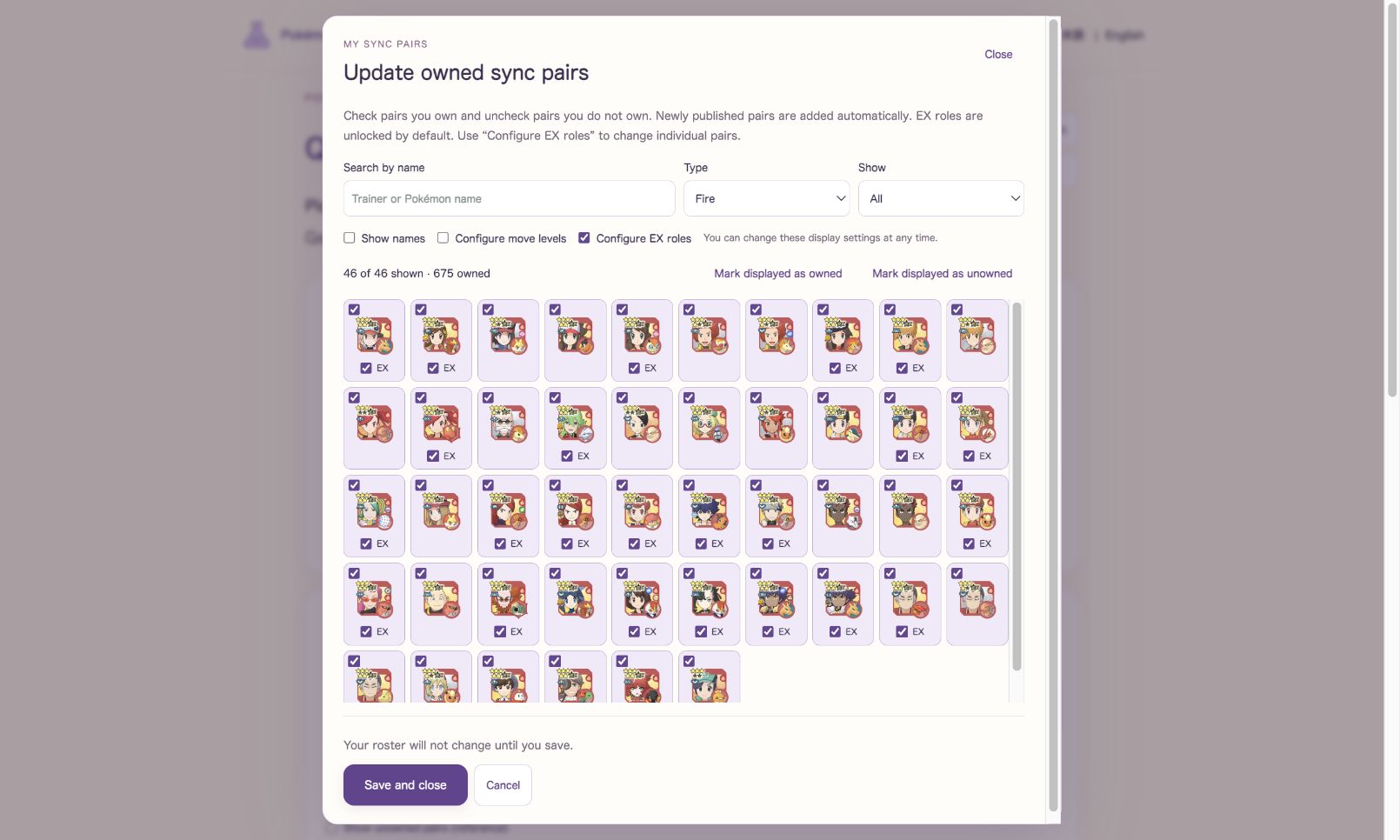
The initial default move level is 1, with 6★ EX and EX roles treated as unlocked. Saved default and individual move levels take precedence. Adjust any locked EX roles individually. Sync grids are selected automatically within 60 energy, without Superawakening. Turning off 6★ EX under “Move levels and upgrades” also disables EX roles.
Save and load your collection with JSON
Your collection is normally saved in this browser. Use a JSON file to transfer it to another device or keep a backup. There is no automatic account-based synchronization.
- Below the search results, select “Remember current roster”. This saves the current ownership, move levels, and EX roles in the browser and downloads a JSON file. You can also export JSON from the ownership page.
- On another device, select “Load current owned pairs” beside the title and choose your JSON file.
- Review the preview and apply it. Selecting a file alone does not replace your current collection.
A downloaded JSON file does not update when you edit your collection later. Export it again after making changes. Team results and temporary “used” exclusions are not included. Import is processed in your browser; your collection file is not uploaded to the server.
Exclude unowned or used pairs and search again
If a result includes a pair you do not own, select “Exclude as unowned” on its card. This updates your collection, removing that pair from subsequent normal searches. Export JSON again if you want to transfer the updated collection.
For High Score Events, use “Temporarily exclude as used”. Exclude individual pairs or all three members of a team, then search for the next stage. Used exclusions are separate from ownership. Restore pairs individually or select “Restore all used pairs”. Reloading the page also clears them, and they are never included in your collection JSON.
To explore teams regardless of ownership, select “Find a reference team ignoring ownership”. This leaves your collection unchanged. Type restrictions, your one or two chosen pairs, training settings, and High Score Event used exclusions still apply. To choose an unowned pair first, enable “Show unowned pairs (reference)”.
Read the results and try your own settings
Check the three pairs and sync move order on each team card. Open “View the action order and reference calculation” to see the moves used. “Try this team in the full optimizer →” loads the three pairs, sync grids, calculation settings, and action order into the detailed tool, where you can adjust them to your training.
If a card’s index says “Not calculated”, its sync move order is also an uncalculated suggestion. “Adjust in the full optimizer →” opens the detailed tool’s starting page; it does not restore a calculated team and action order.
Candidates first meet the required roles and type restrictions, then combinations of high-Tier attackers are compared. Matching EX weather, terrain, and zones are prioritized too. Tier alone does not determine the final order: combinations and training settings can change the calculation results.
For each type, up to five main EX weather, terrain, or zone setters and five support candidates are prepared. The original damage-oriented sync grid is compared with support, field, and sync-countdown grids in the same team. In Damage Challenge / Super Sparring, pairs without an attack that can hit the selected weakness compare support grids only. Circles multiply the matching Physical or Special factor by the defensive circle’s damage bonus. With three Kanto pairs and all three circles active, both Physical and Special attacks receive 1.4 × 1.2 = 1.68 times damage.
Candidates are compared quickly, then promising action orders receive additional checks. Repeating a search with the same settings reuses results saved within this page. They are separate from collection JSON and are not sent to a server. Changes to settings or published data trigger a new calculation.
The displayed value is a reference firepower index, not a guarantee of in-game damage or event score. Even with Support included, Battle Tower and High Score Event searches do not simulate enemy attacks, HP changes, survival, or attrition between floors. Check the event’s special conditions and whether you can execute the suggested actions, and use the detailed tool for finer adjustments.